
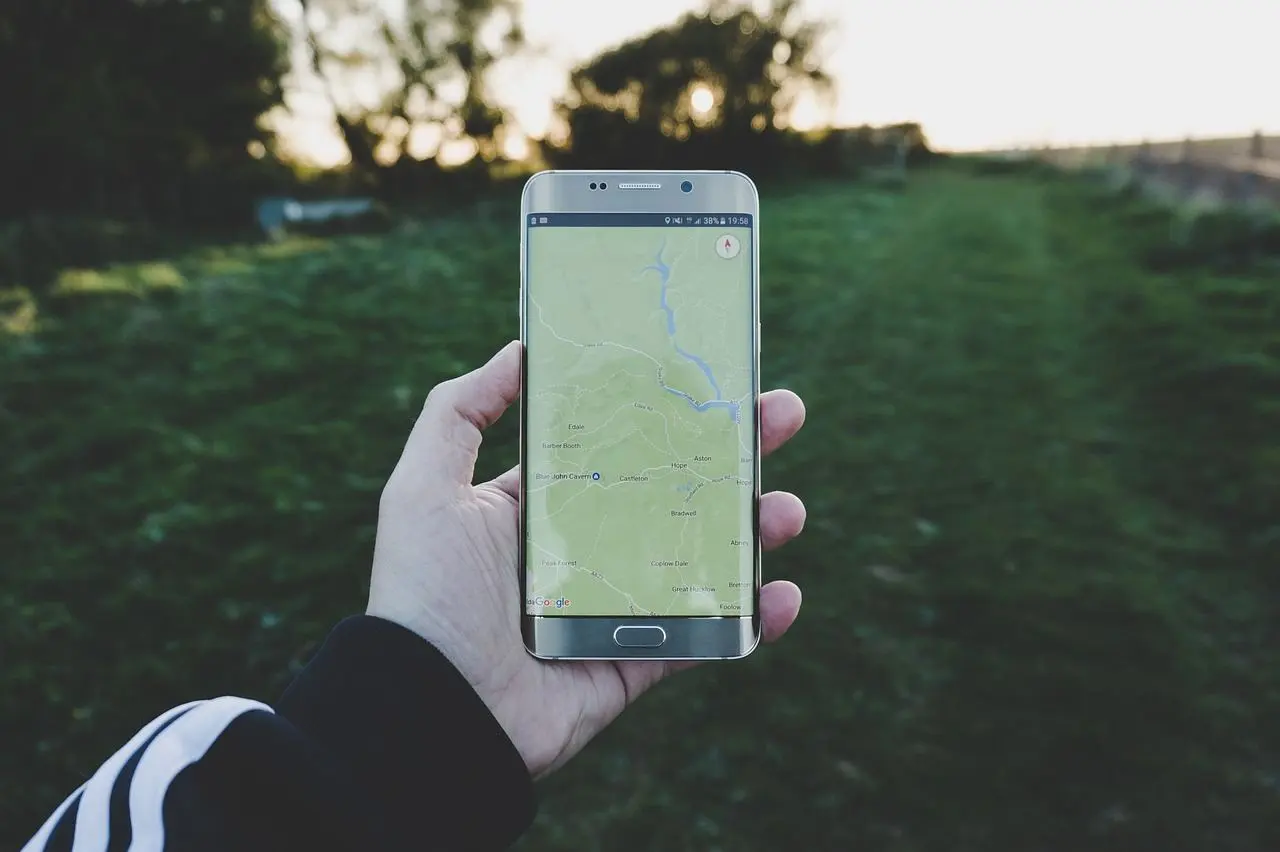
Heading somewhere with patchy signal? The best offline maps apps for android let you download an area first and navigate without data. Google Maps covers the basics, and this guide shows how to set it up and what to check in any alternative.
This guide sits inside our roundup of the best android apps, and it focuses on map apps that keep working when your connection drops.
| Item | Value |
|---|---|
| Offline download in Google Maps | Save an area to your phone or tablet |
| Automatic update window | Maps expiring in 15 days or less, on Wi-Fi |
| SD card storage | Android 6.0 or higher needs portable storage |
| Walking, transit and bicycling directions offline | Unavailable |
| Mapbox SDK offline limit | 750 tile packs |
The figures come from Google’s offline maps help page and Mapbox’s offline maps documentation. They can change, so check the source before you rely on them.
What should an offline map app do?
An offline map app should let you download a region before you leave and then guide you through it with no data. Mapbox lists travel apps for international users who want to avoid roaming charges among the typical uses for offline maps.
Whatever app you pick, check these points before you trust it on a trip:
- Storage: how large the saved area gets and whether it can live on an SD card.
- Freshness: whether the app refreshes saved maps for you or leaves it to you.
- Coverage: whether downloads are allowed in the country you are visiting.
- Route limits: which kinds of directions still work without signal.
The sources behind this guide document Google Maps in detail, so it is the app walked through below. Judge any alternative against the same four points.
Google Maps as your offline baseline
Google says you can save an area from Google Maps to your phone or tablet and use it when you are offline, as described on its help page. After the download, the app works much as it normally does.
The catch is the route. Offline maps can guide you to your destination only as long as the entire route sits inside the downloaded area, so cover the whole journey rather than just the city at the end.

Availability also varies by place. Google notes that contract terms and other reasons block downloads in some countries or regions, so check your destination before you fly.
How to download an area in Google Maps
The quickest route is to search for a place and save the map around it. Follow these steps on your Android phone or tablet, using Google’s published instructions:
- Open Google Maps while connected to the internet and signed in.
- Search for the place you are visiting.
- Swipe right in the place sheet.
- Tap More, then Download offline map, then Download.
Want to choose the exact area? Tap your profile picture, open Offline maps, tap Select your own map, adjust the frame and tap Download.
Google can also suggest areas for you. Based on upcoming trips from sources such as Gmail and Google Travel, Recommended maps lists offline maps to download.
What stops working without signal
An offline map is not a full replacement for a live connection. Google’s help page lists several features that drop out:
- Transit, bicycling and walking directions are unavailable while you are offline.
- When you drive offline, you get no traffic info and no alternate routes.
- Downloads are not offered at all in some regions.
Plan your walking and transit legs while you still have signal, and screenshot anything you cannot afford to lose. The best android pdf reader apps can open saved itineraries and tickets in the same situation.
Keeping offline maps fresh and saving space
Saved maps expire, so you have to update them before a trip. When a map is due to expire in 15 days or less and you are on Wi-Fi, Google Maps tries to update the area on its own, per the Google Maps help page.
To make that automatic, open Offline maps, tap Settings and switch on Auto-update offline maps.
Storage is the other constraint. Google saves downloads on internal storage by default, though an SD card works too. On Android 6.0 or higher, the card must be set up as portable storage, and switching location means downloading the map again.
If your phone is short on space, clear out junk first with one of the best android file manager apps before you download a large region.
What map SDKs reveal about offline limits
Mapbox’s Maps SDK for Android is a toolkit developers use to build offline features into their own apps, not an app you install. Its documentation is useful because it spells out the trade-offs that apps built this way face.
- Data freshness: offline maps do not update automatically with new map data in that SDK, so developers must refresh them manually.
- Storage space: large offline regions can consume significant device storage.
- Tile pack cap: the cumulative number of unique tile packs cannot exceed 750 tile packs.
- Testing: Mapbox advises testing offline functionality in airplane mode or with the network disabled.
These limits belong to the SDK, not to every map app. They are a useful reminder to ask any app how it handles updates and storage.
Frequently asked questions
Can I download offline maps in every country?
Show answer
Not always. Google says certain regions cannot be downloaded, and it gives language support and address formats among its reasons, so confirm your destination on the help page first.
What do I do when a saved map has expired?
Show answer
Tap Update now in the Update offline maps notification, or open Offline maps and choose the expired area. Then tap Update while you have a connection.
Can I use other apps on mobile data while offline maps are set up?
Show answer
Yes. Google says you can set up offline maps and still use other apps with mobile data, and Download preferences under Offline maps settings lets you control how the downloads behave. See Google’s instructions.
How can I check my download works before I travel?
Show answer
Switch on airplane mode, open the app and look up your route. If the whole path appears, the download covers it; if not, widen the saved area while you still have signal.